Install
npx ccbrief initThis copies a self-contained renderer into ~/.claude/ccbrief/, backs up your
settings.json and adds the statusLine block to it. The rest of your
settings stay as they are. When it finishes, it shows a preview and the next steps.
You don't need to restart. Claude Code reloads its settings on its own, so the status line appears the next time you interact with it.
Requires Node 22 or newer. Works on Windows, macOS, Linux and WSL.
Update
npx ccbrief@latest initRunning init again is how you upgrade. It copies the renderer, so a newer package
has no effect until you run it. It's safe to re-run: your config and your other settings are
kept.
Installed globally instead? Run npm install -g ccbrief@latest, then
ccbrief init.
Uninstall
npx ccbrief uninstallThis restores your backed-up settings.json, or removes only the
statusLine block ccbrief added. It asks before deleting ~/.claude/ccbrief/.
Presets
standard is the default. It shows where you are, how full the context is, when your
limit resets and how much of it you've used, and which model you're on.
ccbrief/main │ 42% ━━━━───── │ ⏳2h 0m · 40% │ Opus 5.5detailed adds the folder name, lines changed, tokens, session cost, the weekly limit
and reasoning effort. Press p in the picker to switch to it, then turn off anything you
don't need.
ccbrief │ ccbrief/main │ +120/-34 │ 42% ━━━━───── │ 128k │ $1.23 │ ⏳2h 0m · 40% │ wk 3d 4h · 62% │ high │ Opus 5.5If the line is wider than your terminal, ccbrief moves whole segments onto up to three rows. A segment is never split, and the terminal never wraps it halfway:
ccbrief │ ccbrief/main │ +120/-34 │ 42% ━━━━───── │ 128k │ $1.23
⏳2h 0m · 40% │ wk 3d 4h · 62% │ high │ Opus 5.5
Segments with no data are hidden. Context % and rate limits are null early in a
session and right after /compact, so ccbrief leaves them out until Claude Code reports a
value. It never shows a placeholder 0%.
Configure
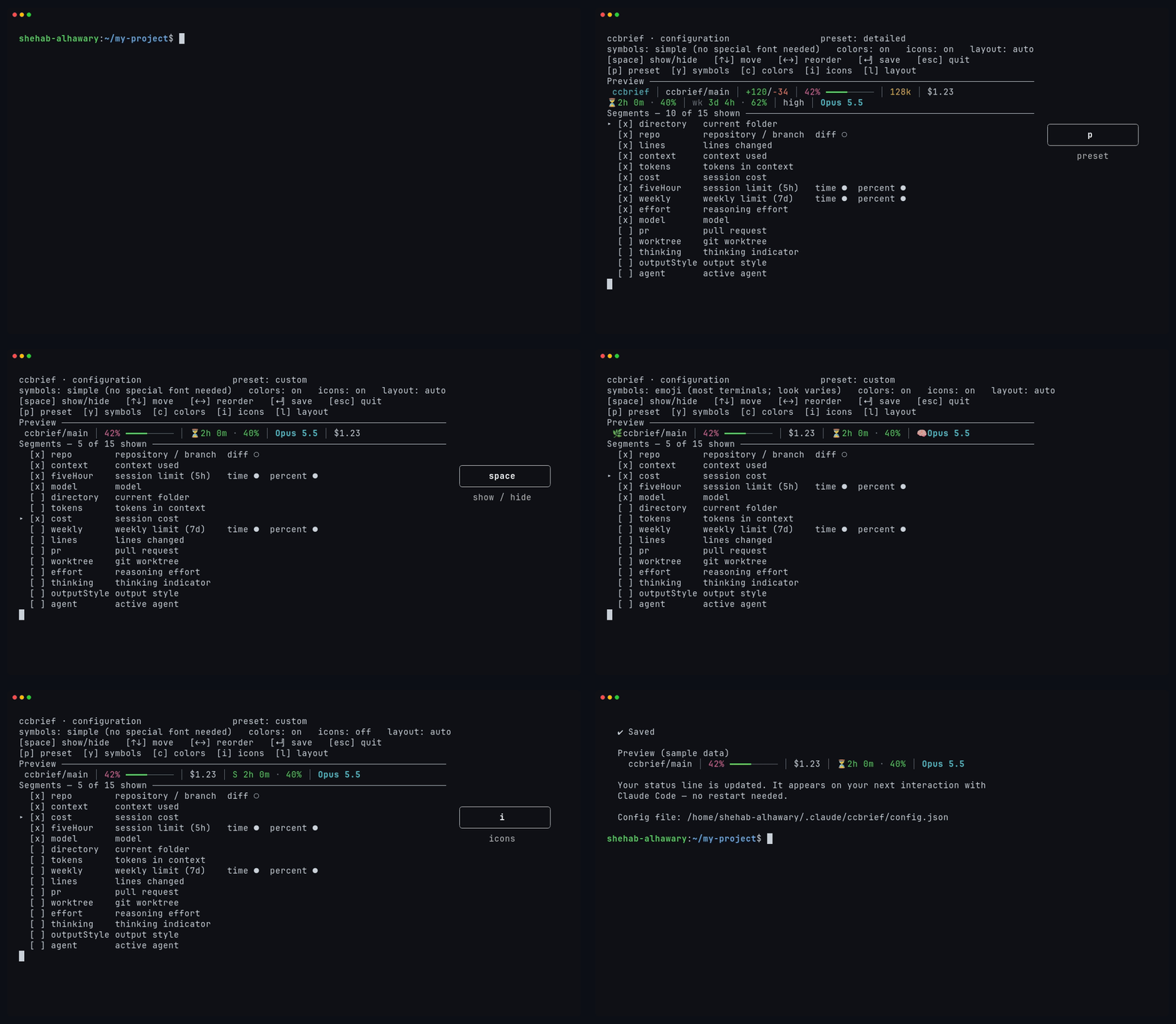
npx ccbrief configThis opens an interactive picker with a live preview. It lists every segment, each with a
plain-English name. Saving also updates settings.json, so your changes appear on Claude
Code's next render. You don't need to reinstall.
| Key | Does |
|---|---|
| space | Show or hide the focused segment |
| ↑ ↓ | Move between segments |
| ← → | Move the focused segment left or right |
| p | Cycle preset |
| y | Cycle symbols |
| c | Toggle colors |
| i | Toggle icons |
| l | Cycle layout |
| d | On repo: show or hide the working-tree diff (+3/-1) |
| t % | On fiveHour and weekly: show or hide the countdown (t) or the usage percent (%) |
| ↵ | Save and exit |
| esc | Quit without saving |
The config file
The config lives at ~/.claude/ccbrief/config.json. Set CLAUDE_CONFIG_DIR
to move the base directory. The file is optional: if it's missing or malformed, ccbrief uses the
defaults and the status line keeps working. The picker writes it for you.
| Key | Values | Default |
|---|---|---|
preset | standard, detailed or custom | standard |
layout | auto, single-line (drops the segments that don't fit) or multi-line | auto |
maxRows | 1 to 3 | 3 |
symbols | simple, emoji, nerd-font or ascii | simple |
colors | true or false | true |
icons | true or false | true |
segments | Ordered list, read only when preset is custom | None |
Written by hand, a custom config looks like this:
{
  "preset": "custom",
  "segments": [
    { "id": "repo", "enabled": true, "showDiff": true },
    { "id": "context", "enabled": true },
    { "id": "fiveHour", "enabled": true, "showTime": true, "showPercent": true },
    { "id": "model", "enabled": true }
  ]
}
A named preset has its own fixed list, so a segments key next to it does nothing.
Unknown ids are ignored.
Segments
Each segment hides itself when its data is missing.
| Segment | Shows | Hidden when |
|---|---|---|
directory | Current directory (ccbrief) | No workspace directory |
repo | Repo and branch (ccbrief/main); showDiff adds +3/-1 | Not in a git repo |
context | Context used, with a bar (42% ━━━━─────) | Early in a session, or after /compact |
tokens | Tokens in context (128k) | Before the first response, or after /compact |
cost | Session cost ($1.23) | No data |
fiveHour | Session limit: reset countdown and usage (⏳2h 0m · 40%) | Not on Pro/Max |
weekly | Weekly limit: reset countdown and usage (wk 3d 4h · 62%) | Not on Pro/Max |
lines | Lines Claude added and removed this session (+120/-34) | No data |
effort | Reasoning effort (high) | No data |
model | Active model (Opus 5.5) | No data |
pr | PR number and review state, as a clickable link (OSC 8) | No PR for the branch |
worktree | Active git worktree name | Not in a worktree |
thinking | Thinking indicator | Thinking is off |
outputStyle | Output style name (concise) | No data |
agent | Active subagent name | No subagent running |
The last five aren't in either preset. The picker still lists them, and space turns one on. The rate-limit countdown shows the time left until your limit resets, so it never turns red. The usage % next to it is the part that changes color as you use up the limit.
Colors and symbols
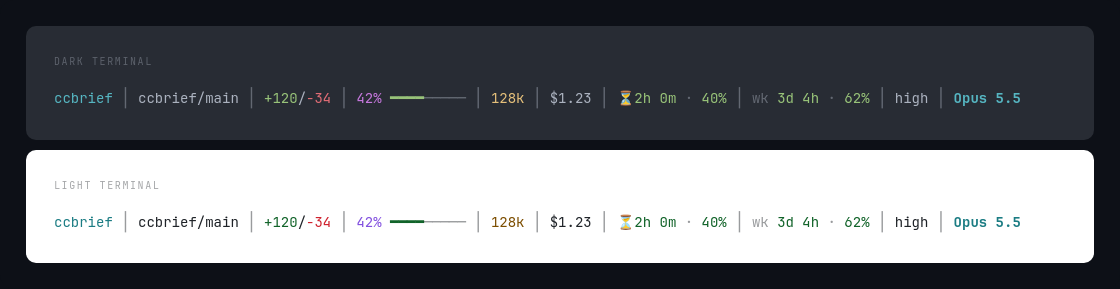
Each field has its own color so you can find it at a glance: context is magenta, tokens yellow, the reset timer green and the model cyan. Only the context bar and the rate-limit percent change color with their value, going from green to yellow to red as they fill.
ccbrief uses the standard ANSI palette instead of fixed RGB values, so your terminal theme sets the exact shades and the line stays readable on dark and light themes.
There are four symbol sets. Each one sets the icons, the bar characters and the separator.
simple is the default: plain text plus the ⏳ timer, with no special font needed.
simple    ccbrief/main │ 42% ━━━━───── │ 128k │ ⏳2h 0m · 40% │ high │ Opus 5.5
emoji     🌿ccbrief/main │ 42% ━━━━───── │ 🔸128k │ ⏳2h 0m · 40% │ ⚡high │ 🧠Opus 5.5
nerd-font   ccbrief/main │ 42% ━━━━───── │ 128k │ ⧗ 2h 0m · 40% │  high │  Opus 5.5
ascii     ccbrief/main | 42% ####----- | 128k | S 2h 0m · 40% | high | Opus 5.5
nerd-font shows blank boxes unless you have a Nerd Font installed. The picker's live
preview lets you check it before you save. If the ⏳ timer shows as a box, your terminal has no emoji
font, so pick ascii. To turn colors or icons off, set colors: false or
icons: false, or press c or i in the picker.
FAQ
- How do I add a status line to Claude Code?
- Run
npx ccbrief init. It writes the renderer to~/.claude/ccbrief/, backs up yoursettings.json, and adds astatusLineblock to it. You don't need to restart Claude Code. - Why did my context percentage disappear?
- Claude Code hasn't reported it yet.
used_percentageis null early in a session and right after/compact, so ccbrief hides the segment instead of showing0%. It comes back after the next response. - Can I see my 5-hour and weekly rate limits?
- Yes. The
fiveHourandweeklysegments show the reset countdown and the percent used. Claude Code only reports rate limits on Pro and Max plans, so on other plans they stay hidden. - Does it work on Windows?
- Yes. It runs on Windows, WSL, macOS and Linux with Node 22 and 24. CI runs the full test suite on Windows, macOS and Linux.
- How is this different from a shell script with
jq? - A typical bash status line runs
jqonce per field, about twenty processes on every render. ccbrief is a single Node process that parses the session JSON once, and the renderer it installs is one self-contained file with no dependencies. - Can I choose which segments to show?
- Yes. Run
npx ccbrief config. It lists all fifteen segments with a live preview. See Segments.